
Intro
When you create an Azure SQL database (DB) right of the bat, you will be faced with the need to assign permission in the database to users or security groups. Normally on an on-premises SQL DB it’s no problem and can be done using the GUI in SSMS. But for an Azure SQL DB, there is no GUI to assign permissions, you will need to use SQL queries to assign permissions to users or groups. Let me show you how to assign SQL DB permissions to a AAD security group.
Assigning the permissions
Prerequisites:
* Azure Active Directory (AAD) Security Groups you want to assign permissions to
* Access to a AAD Azure SQL admin account
Note: This also works with on-prem AD security groups (in a hybrid environment)
The topology that I will be using is one AAD group to Grant Logon permissions to the SQL server, and then add three groups to that group in AAD, and then afterwards I’ll assign the same three groups the following permission set: Owner, Writer & Reader.
The reason for this topology is that I want to save time, when I eventually have to add another database to the SQL server. When the time comes i can just create three AAD groups and add them to the “ACL_GrantLogin_xx” group and not have the need to assign permissions in the master DB, and then just set the permissions on the database i just created. For me the administration is easier in the long run and more transparent.
The other reason is ‘cleanness’ in the Master DB, in ‘only’ having one group and not serval groups.
This the groups I’m going to ad:
- ACL_GrantLogin_CFP-SQLServer (Used in the master DB)
- ACL_DBOwner_MyDatabase01
- ACL_DBWriter_MyDatabase01
- ACL_DBReader_MyDatabase01
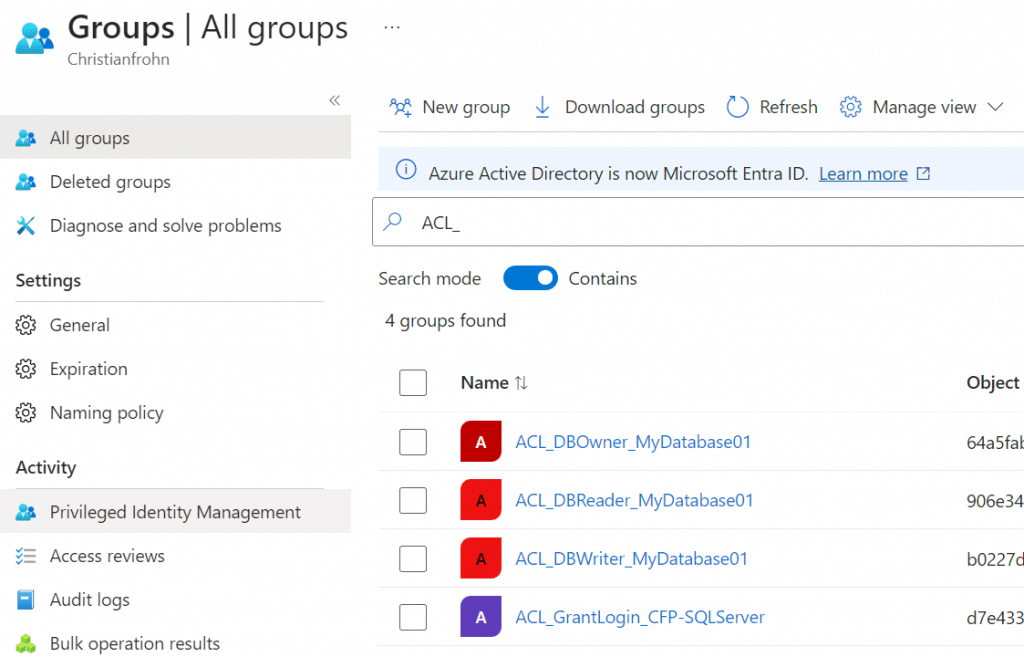
To assign database permissions to an ADD group, you need to connect to the SQL server using SQL Server Management Studio with a AAD account with admin rights
First of you will need select the database in GUI and then select “New query” – Normally on an on-premises SQL server, you can use the “Use” statement, but that is currently not support on Azure SQL.
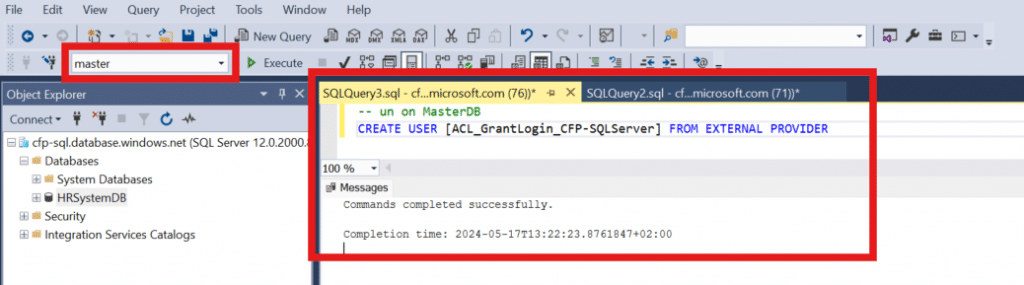
Query on the Master Database
Start by selecting “New query” and then select “master” in the drop down and type in the following:
CREATE USER [ACL_GrantLogin_CFP-SQLServer] FROM EXTERNAL PROVIDERThen hit “Execute (F5)”
Query on the Database (Mydatabase01)
Then Select your database in the drop-down menu – Mine is named “MyDatabase01”, then Select “New query” and type the following:
Then hit “Execute (F5)”
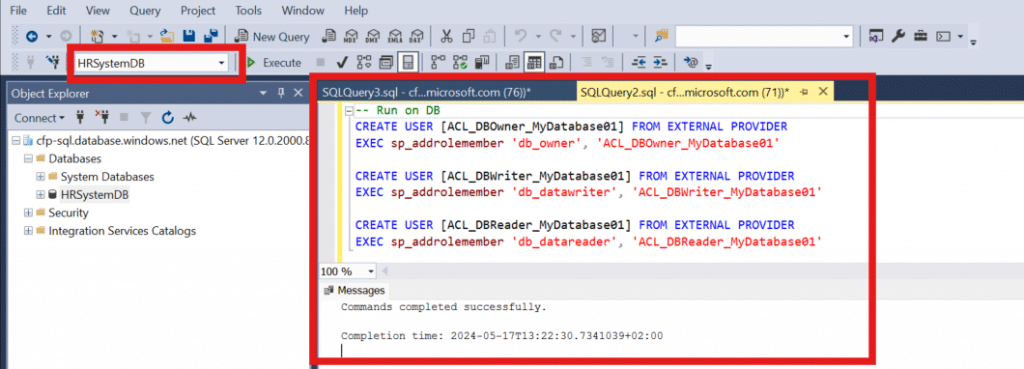
Confirmation
You can check that it worked by running this command:
SELECT * FROM SYS.DATABASE_PRINCIPALS